
Why Customer Management Matters in POS
Imagine a customer walks into your store regularly. If your POS system remembers their name, phone number, previous purchases, loyalty points, and preferred payment method, the checkout experience becomes much smoother.
With customer management in Odoo 19 POS, you can:
For businesses focused on retention, this feature is incredibly valuable.
Prerequisites
Before creating customers in POS, make sure:
How to Create a Customer in Odoo 19 POS
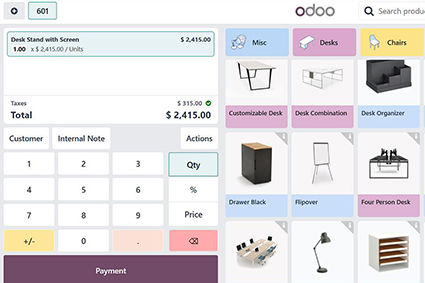
Step 1: Open the POS Session
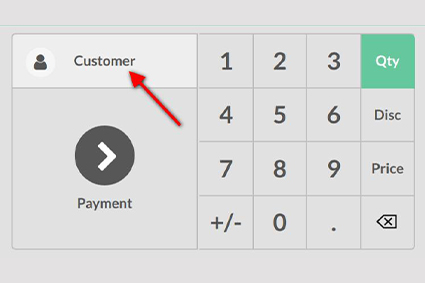
Step 2: Access the Customer Screen
Once the POS interface opens:
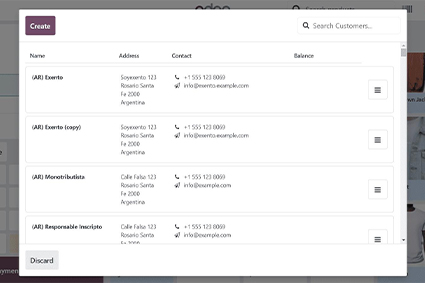
Step 3: Create a New Customer
Click Create or New Customer and enter details such as:
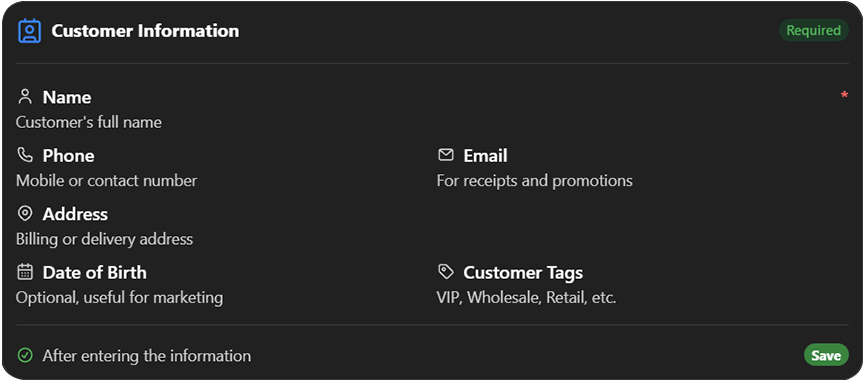
The customer is now available for immediate use in the current POS order.
Assigning a Customer to a POS Order
After creating the customer:
This ensures the sale is linked to that specific customer profile.
How to Edit Customer Details
Customer information often changes. To update it:
Changes are synchronized with the main Contacts module in Odoo.
Managing Customer Purchase History
One of the biggest advantages of using Odoo POS is access to customer purchase history.
From the customer record, you can view:
This helps staff provide better recommendations and support.
Using Loyalty Programs with Customers
Odoo 19 POS integrates customer profiles with loyalty programs.
Example
A customer earns 1 point for every ₹100 spent.
When they return:
This creates a strong incentive for repeat purchases.
Searching for Customers Quickly
In busy retail environments, speed matters.
Use the search bar in the customer list to find customers by:
Name
Phone number
Email address
Customer reference code
Odoo’s instant search helps cashiers locate customers within seconds.
How to Handle Walk-In Customers
Not every buyer wants a full customer profile.
You have two common options:

This keeps your customer database organized while still capturing valuable data from loyal shoppers.
Business Benefits of Customer Management in Odoo 19 POS
Higher Retention
Encourage repeat purchases
Higher Retention
Encourage repeat purchases
Higher Retention
Encourage repeat purchases
Higher Retention
Encourage repeat purchases
Final Thoughts
Creating and managing customers in Odoo 19 POS is much more than storing names and phone numbers. It’s about building long-term relationships with the people who buy from your business.
By taking a few extra seconds to create customer profiles, you gain access to purchase history, loyalty tracking, targeted promotions, and valuable business insights. Whether you’re operating a single retail outlet or multiple stores, effective customer management can significantly improve both customer satisfaction and revenue growth.
For businesses looking to get the most out of Odoo 19, customer management in POS is one feature that should never be overlooked.
Author
With 17+ years of visionary leadership in the IT industry, Ragesh Unnikrishnan has pioneered scalable technology solutions that empower businesses across global markets.